Linux
Infrastructure, Control Panel and Ain Imager for Intel and ARM Debian-based systems.
DEB repository setup →
INDIGO 3 packages →
INDIGO 2 packages →

You can download INDIGO distributions for Linux, macOS and Windows here.
Choose your platform for the latest INDIGO software, or use the package repository to keep Linux installations up to date.
Infrastructure, Control Panel and Ain Imager for Intel and ARM Debian-based systems.
DEB repository setup →
INDIGO 3 packages →
INDIGO 2 packages →
INDIGO A1 and INDIGO Control Panel and related native applications for Apple ecosystem.
Infrastructure, Control Panel, Ain Imager, Astrometry and the client SDK for 64-bit Windows.
Binary distribution of INDIGO Infrastructure or INDIGO Control Panel can be installed on Linux either automatically by apt-get or manually by dpkg.
To setup automatic installation and subsequent updates, you need to add our repository URL to APT sources list. To do this from command line execute:
$ echo "deb [trusted=yes] https://indigo-astronomy.github.io/indigo_ppa/ppa indigo main" | sudo tee /etc/apt/sources.list.d/indigo.list
and execute the following commands to install INDIGO 3, the current release:
$ sudo apt-get update
$ sudo apt-get install indigo3
$ sudo apt-get install ain-imager-indigo3
$ sudo apt-get install indigo-control-panel-indigo3
indigo3 is the infrastructure, the server with all the drivers, and the two client packages (ain-imager-indigo3 and indigo-control-panel-indigo3) depend on it. The INDIGO 3 and the INDIGO 2 packages are mutually exclusive, so installing one set removes the other; the INDIGO 2 packages are indigo, ain-imager and indigo-control-panel.
To do it from e.g. Synaptic package manager, execute it, go to Settings > Repositories, click new and fill URI, distribution and sections with the following text:
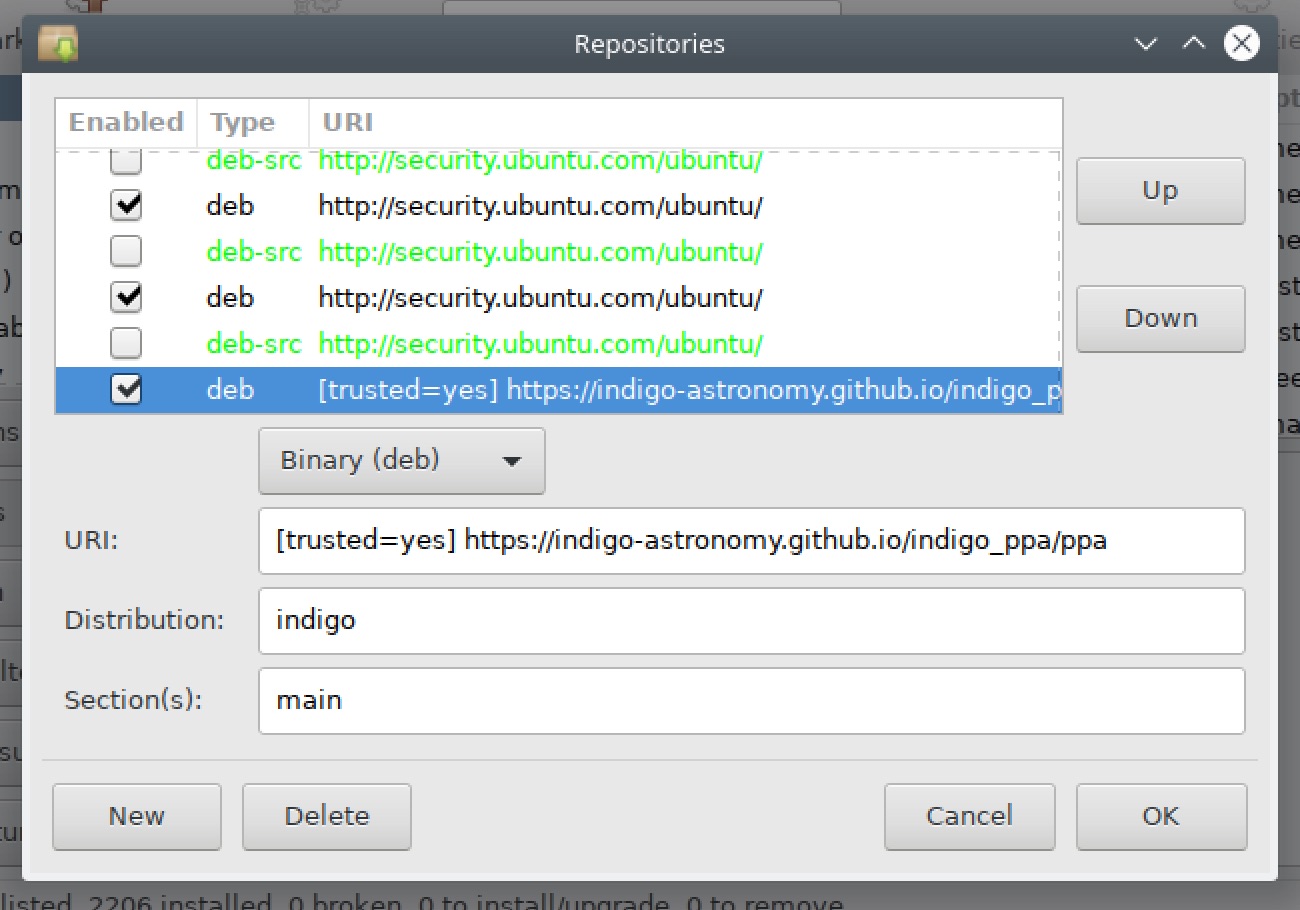
Once done, click Reload and search for indigo packages.
Release notes are available in CHANGELOG.md
To install INDIGO 3 manually, download one of the following packages for your operating system and install it with a command like this:
$ sudo apt-get install ~/Downloads/indigo3-3.0-9-YYY.deb
One can also install INDIGO 3 Control Panel, a GUI tool for managing and configuring INDIGO 3 Infrastructure:
Note: INDIGO Control Panel version 1.3-4 requires INDIGO 3.0-8 and above
To install INDIGO 3 Control Panel, you need to install the indigo3 infrastructure first.
Ain is an INDIGO imager application for use with INDIGO 3:
Note: Ain version 3.0-1 requires INDIGO 3.0-8 and above
To install Ain INDIGO 3 Imager, you need to install the indigo3 infrastructure first.
Release notes are available in CHANGELOG.md
To install INDIGO manually, download one of the following packages for your operating system and install it with a command like this:
$ sudo apt-get install ~/Downloads/indigo-2.0-XX-YYY.deb
One can also install INDIGO Control Panel, a GUI tool for managing and configuring INDIGO Infrastructure:
To install INDIGO Control Panel, you need to install indigo-2.0-XXX infrastructure first.
Note: Some features of Ain version 2.6-0 require INDIGO 2.0-336 and above to work
Ain is an INDIGO imager application:
To install Ain INDIGO Imager, you need to install indigo-2.0-XXX infrastructure first.
To install INDIGO on Apple computer, iPhones or iPads visit www.cloudmakers.eu and install INDIGO A1 for macOS (free INDIGO Server with optional paid GUI for imaging, guiding, mount control and configurable dashboards) or INDIGO Control Panel. Client only INDIGO A1 and INDIGO Control Panel is also available for iPadOS and iOS.
All installers are for 64-bit Windows. Install 64bit Bonjour first, so that the applications discover INDIGO servers on the network by themselves. See Getting started for what to install for your setup.
The INDIGO server with the drivers and agents. Install it to run a server on this Windows computer, it is not needed if you only connect to a server on another machine. Install the vendors' low-level Windows (e.g. USB) drivers your devices need; ASCOM drivers are not needed.
INDIGO Control Panel is a GUI tool for managing and configuring INDIGO Infrastructure. It comes with INDIGO Server Manager to start and stop the local INDIGO server:
Note:Some features of Ain version 3.0-1 require INDIGO 3.0-8 and above to work
Ain is an INDIGO imager application:
Astrometry tools for local plate solving with the INDIGO server on Windows. Suitable astrometry index files are also required:
This is INDIGO Client software development kit. Windows Developers can use it to develop their own INDIGO applications:
Make sure that you have all prerequisites installed. On Ubuntu / Debian / Raspbian use:
$ sudo apt-get install build-essential autoconf autotools-dev libtool cmake libudev-dev libavahi-compat-libdnssd-dev libusb-1.0-0-dev fxload libcurl4-gnutls-dev libgphoto2-dev libz-dev git curl
It is advised to remove libraw1394-dev as the build may fail if it is installed
$ sudo apt-get remove libraw1394-dev
On macOS install XCode and download and build autoconf, automake and libtool (use tools/cltools.sh script).
If you're ready, get the code and build it
$ git clone https://github.com/indigo-astronomy/indigo.git
$ cd indigo
$ make all
$ build/bin/indigo_server indigo_ccd_asi [other drivers]
and connect from INDIGO Control Panel, any INDIGO client or WEB browser to port 7624...